Tech Friday: WordPress 6.9 update and Apple Watch followup
Posted By RichC on March 13, 2026

On Thursday evening I updated WordPress to 6.9, a few plugins to current versions and addressed a couple apt-update & upgrades on the Linux server; it was more just to keep things up-to-date rather than addressing any problem. 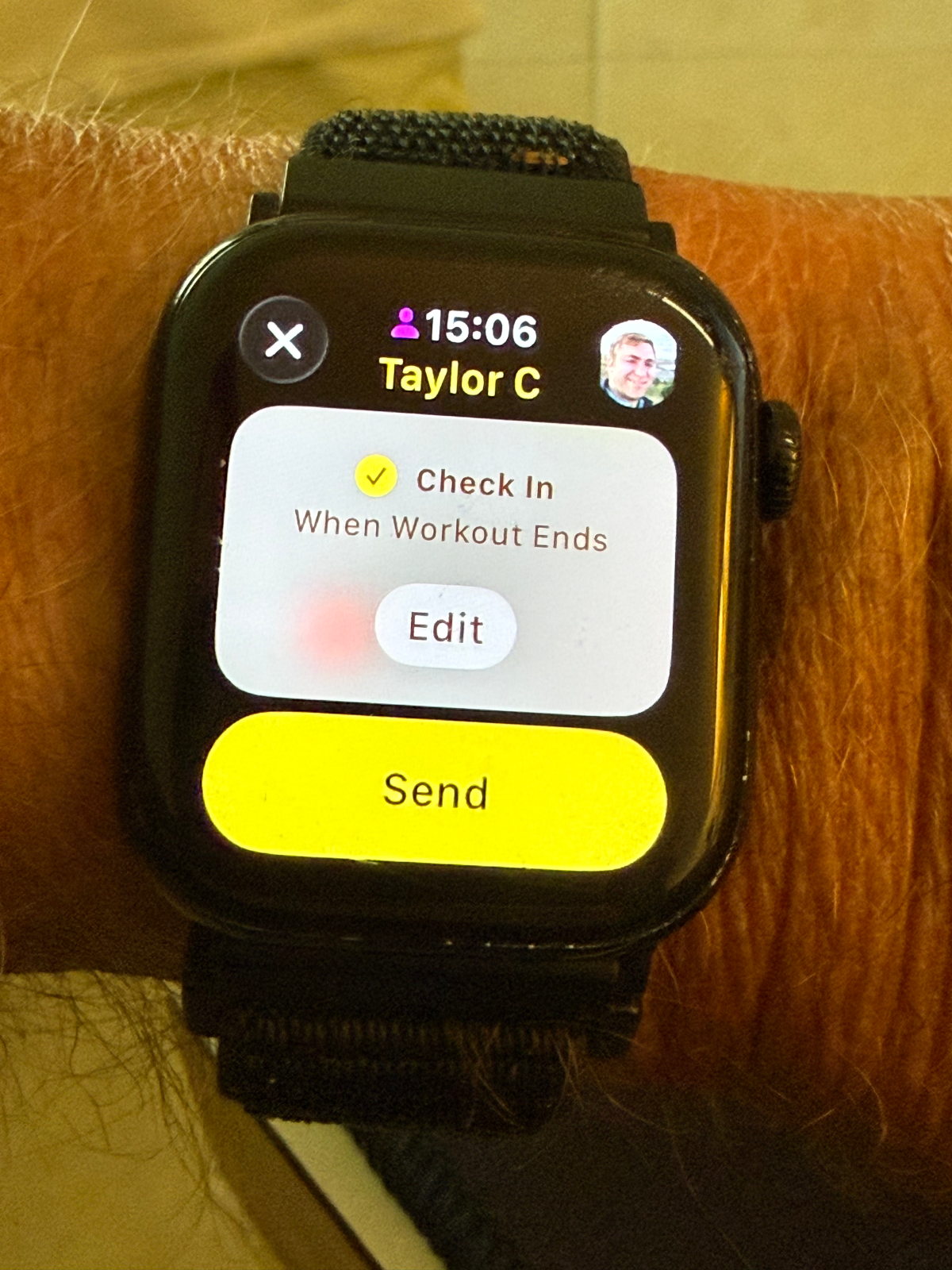 I’ve yet to do a full Linux version update since there are too many problems with old theme code, etc. Who knows when I’ll get around to that — probably when I’m finally forced to do it?
I did seem to figure out how to both remove an Apple Watch “Fitness app” workout buddy and a “workout done” update that has been pretty persistent and an annoying. My son has been on my list, and for some unknown reason, occasionally my Apple Watch 10 sends him a notification (AI implemented?)
It should have been an easy thing to address, but after dealing with it for a few weeks finally figure it out with the help of Gemini AI. Taylor and I chuckled about it and he commented that “I really don’t mind the message … at least I know you’re still alive.” 😉
Before you go for the “nuclear option” of deleting contacts, try these steps to disable the automated prompts and the feature itself.
1. The “Off Switch” (Stop the Reminders)
This is the most likely culprit. There is a specific toggle that tells the Watch to stop suggesting or showing the Check In screen every time you start a workout.On your iPhone: Open the Watch app.
On your Watch: Open the Settings app.
Go to Workout.
Scroll down and find Check In Reminders.
Toggle this OFF.
2. How to “Clear” the Person (If it still shows up)
If the screen in your photo still appears even after turning off reminders, it’s likely because a Check In is “staged” for that specific workout.To Cancel a Pending Check In: On your watch, swipe up to open the Smart Stack (the widgets). If a Check In is active or pending, you’ll see a widget for it. Tap it, scroll down, and hit Cancel Check In.
To Change the Person: As seen in your photo, you can tap the Edit button. Inside that menu, you can usually tap the contact name/icon to change it or remove the automation.
3. The Messages App Setting
Since Check In is technically a Messages feature, the global settings live there.Go to iPhone Settings > Messages.
Scroll down to Check In.
Ensure that under “Data Sharing,” it isn’t set to something that might be forcing a “Full” data share every time you move. (Note: This won’t stop the workout prompt, but it controls what Taylor or you see).
One thing to note: Apple doesn’t currently have a “Clear History” button for Workout Check In contacts. If you turn off the Check In Reminders in the Workout settings as described in Step 1, that “Send” screen should stop hijacking your exercise starts.
Comments