Tech Friday: An old Chromebook, LinuxMint and ChromeFlex (plus MacBook Air, Claude.AI assistance and the Moom app)
Posted By RichC on June 5, 2026
As usual, there are a couple of odds and ends photos left in MyCubby 2026’s May folder that I need to either toss or stick in a filler blog post. So today I’ll add them here.
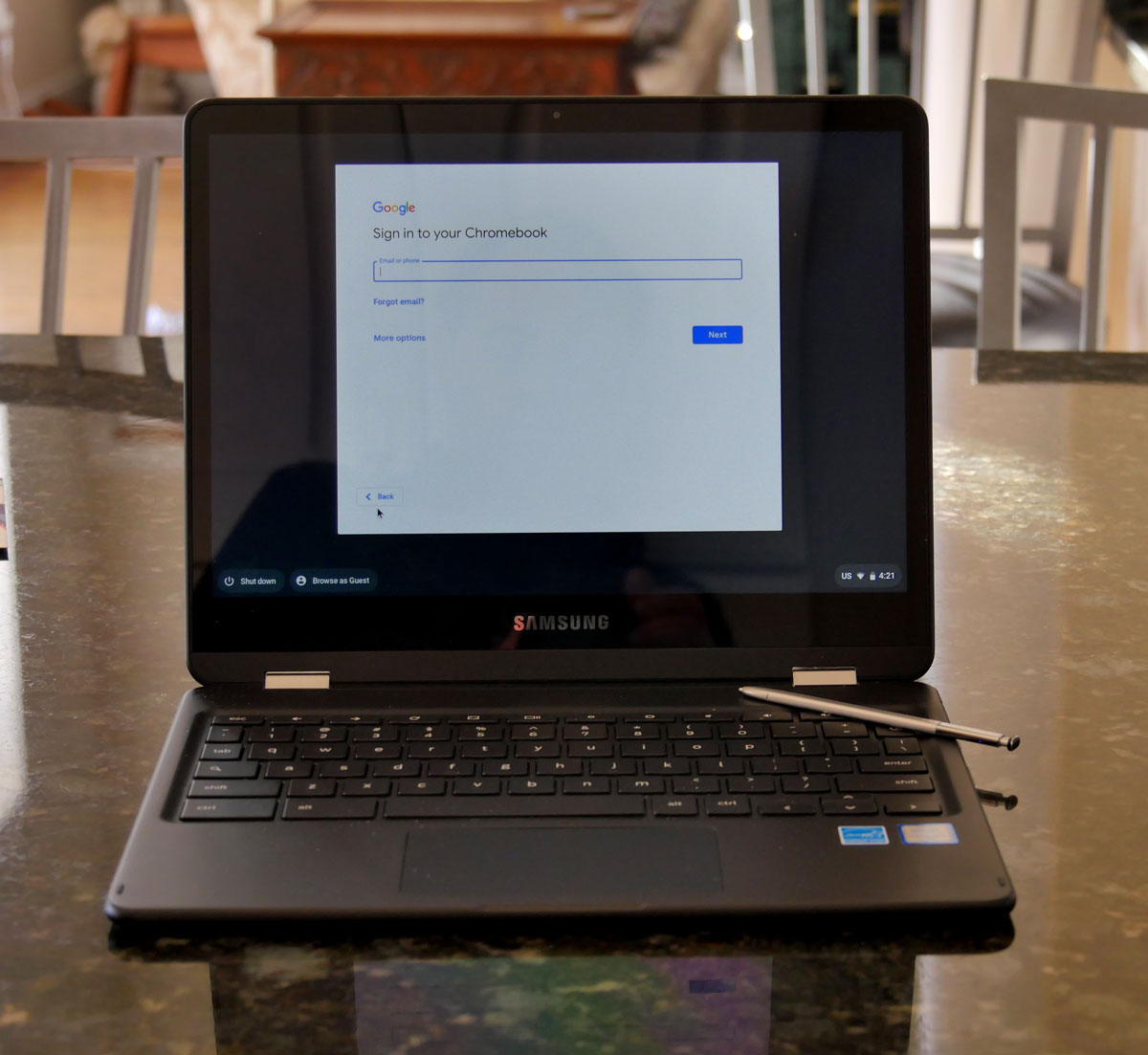
Last month I toiled … and I mean toiled overtime … with Brenda’s older Samsung Pro Chromebook while attempting to convert some perfectly good Intel m3 hardware to a Linux OS. I knew it would need to be a lighter build and so tossed around a few versions … finally deciding on Linux Mint. BUT … I’m getting ahead of myself.
After updating my MacBook Air M2 to the M5 in April in order to gain a bit more memory (too many tabs and spaces), I set up the M2 for Brenda … since her Chromebook is no longer getting updates from Google. That was too bad since she was very comfortable with the small touchscreen Chromebook (more on that in a minute). So that opened the door to play around with and “try” to get Linux on the Samsung Pro. Frankly I recall that same struggle when she moved from a smaller non-touchscreen Samsung Chromebook that she had prior to that.
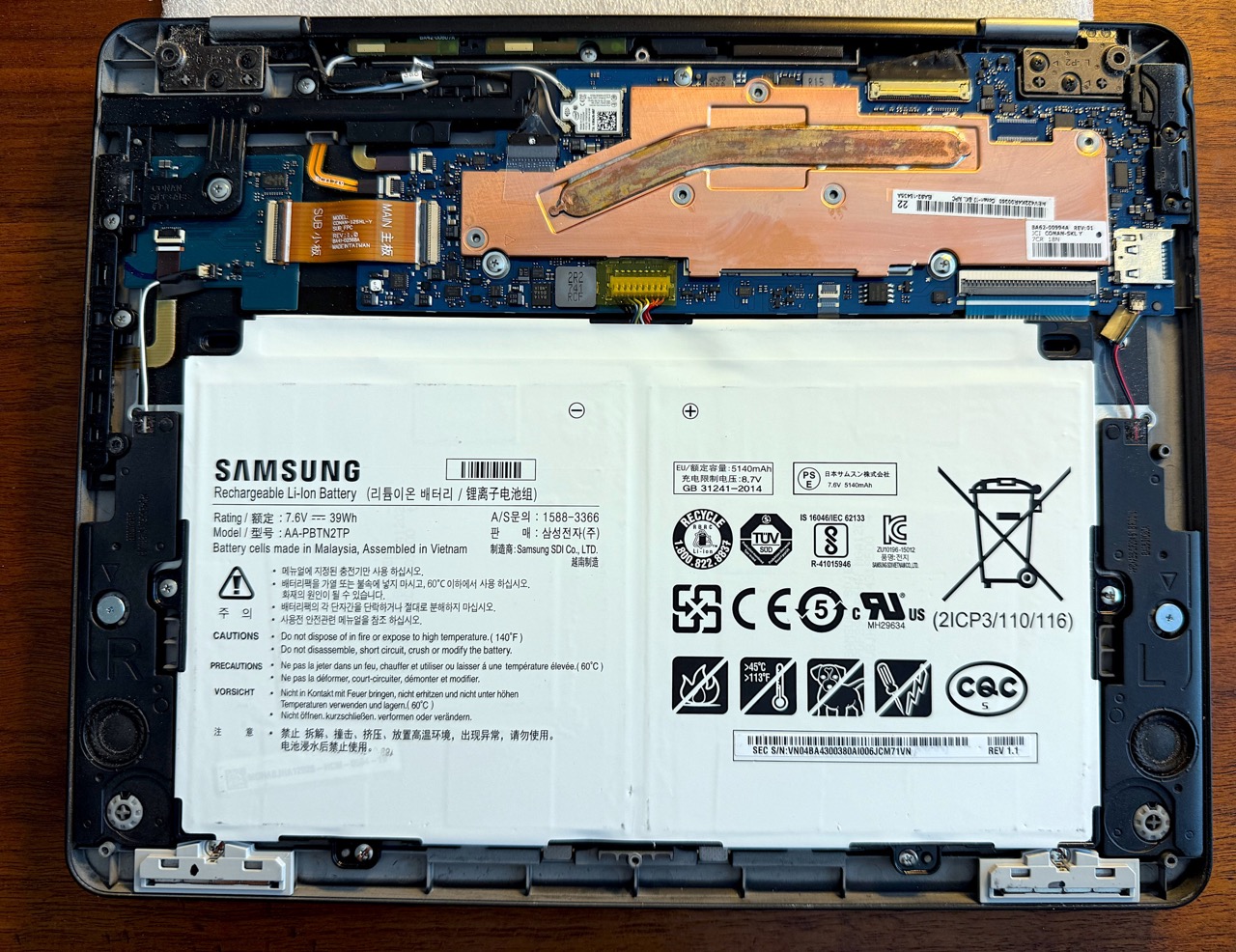
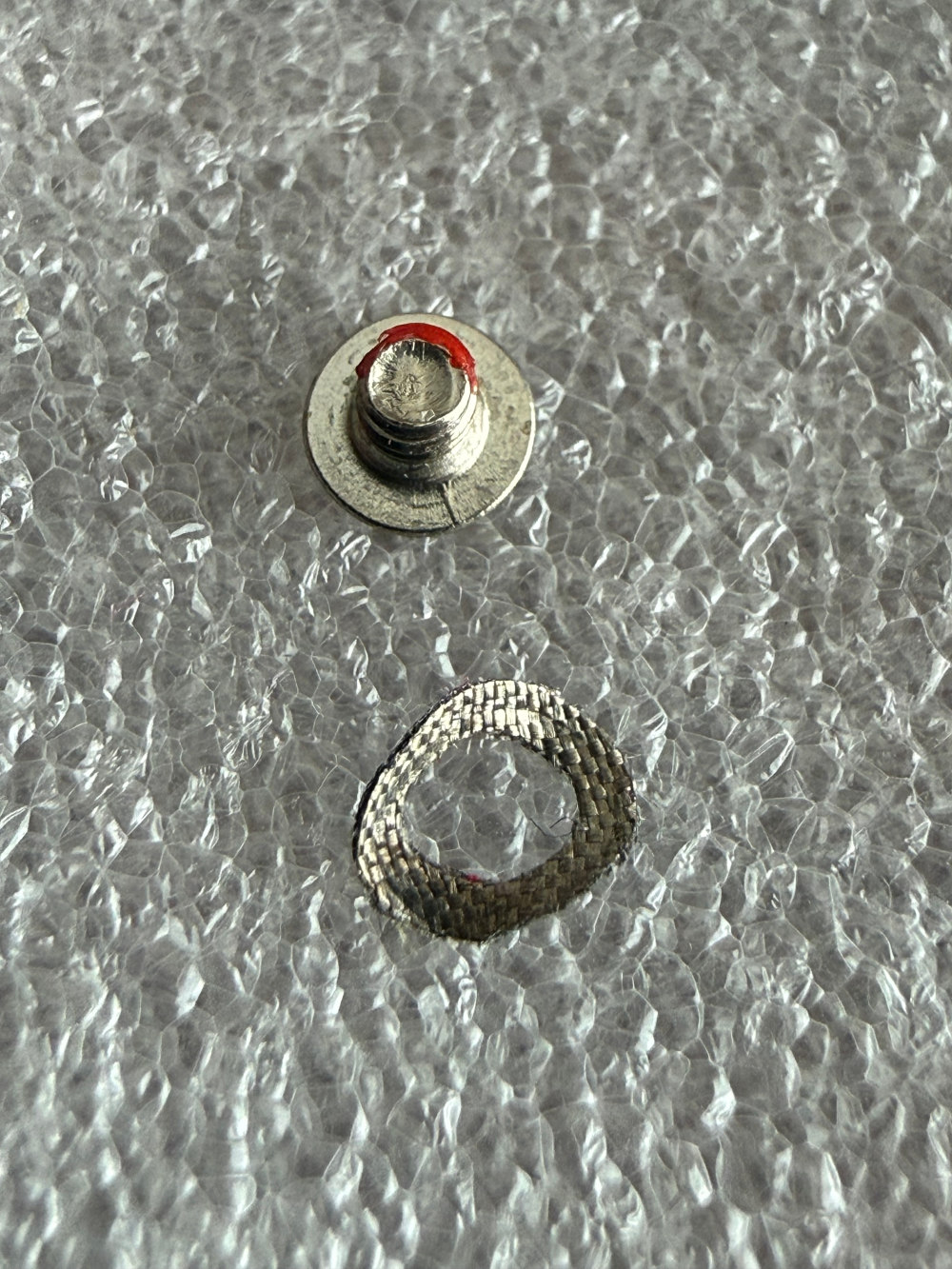
First, it wasn’t easy. There is a Write-Protect screw buried under the backside of the “copper” heatsink that is only accessible by removing the entire board and unscrewing all the screws holding down the heatsink. After that little metal screen washer and screw was removed, I added a little electrical tape just to be safe. Buttoned everything back up, installed the MrChromebox boot loader and then flashed a USB (actually microSD card) with Linux and rebooted the Samsung Pro. What a mess trying to get everything working … and a big problem with the Intel WiFi .. something has limited the range???
The Linux Mint offered very little touchscreen support (it worked .. sort of). The mousepad was limited as well (it is not a MacBook), but thankfully the bluetooth worked perfectly giving me mouse support. As I continued to update with software and chased a few more little problems … only to find out that there wasn’t any sound … nor had tech gurus online found a workaround. The only answer seemed to be use Bluetooth speakers or Bluetooth headphones. Eventually I gave up.
In the meantime, Brenda wasn’t happy or comfortably adjusting to using my M2 MacBook, but then doesn’t use it for more than a 15 minute email check and logging into a couple websites. I think she was so comfortable in using Chromebooks for the last 15 years that trying to transition with out having a touchscreen was frustrating.
So … I looked into ChromeFlex over at “The Google” as George W. Bush said to Maria Bartiromo once upon a time. 😉
It took clearing off the Linux Mint, but continuing to use the MrChromebox boot to get ChromeFlex installed onto the Samsung Pro … BUT all is running and much quicker than the Linux install. The touchscreen worked as it once did BUT the audio has been lost. It could have something to do with the bootloader and removing that Write-Protect?
For now, it it working with whatever updates are available for ChromeFlex and the good news is Brenda is happy. For me, I’ve gained back a MacBook Air M2 that I can haul around with me and not worry about unplugging from my more complicated desktop setup — multiple Spaces/Desktop on a two monitor setup that just works perfectly so as long as I don’t unplug.
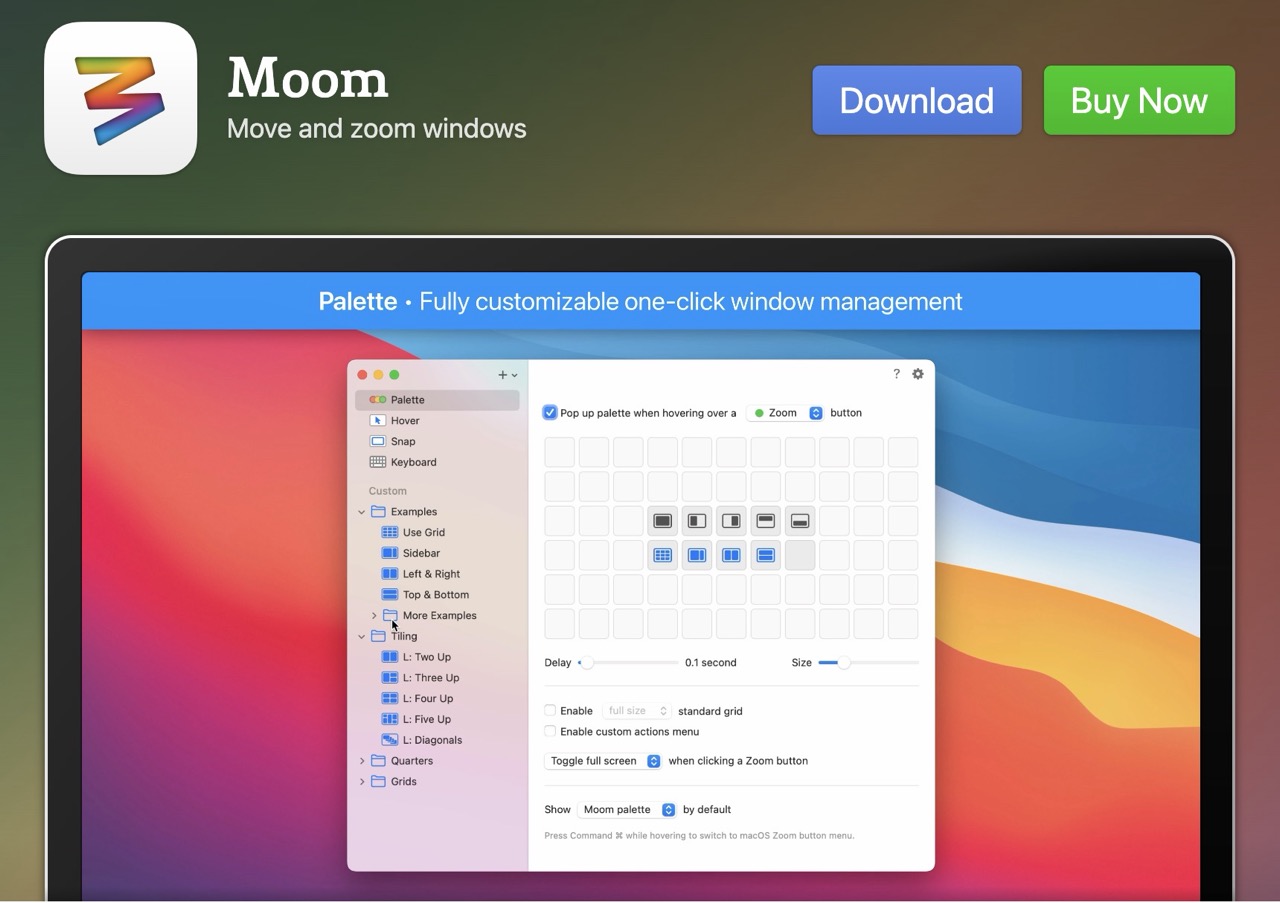
Hm … I wonder if there is.a one-click “save and restore Spaces on multiple displays” option for such a thing? Yes .. there’s an answer for that: Moom. 😊
Claude.AI: This is a classic macOS pain point, and unfortunately Apple doesn’t have a native “save display layout” feature.This is a classic macOS pain point, and unfortunately Apple doesn’t have a native “save display layout” feature. But there are a few real options worth knowing about:
The best third-party solution: Display Manger or Moom + a display profile
The most complete solution combines two things:
- Window layout restoration — Moom (which you already use) can save and restore window layouts as snapshots. You can save your full 5-Space arrangement as a named snapshot and restore it with one click or keyboard shortcut when you reconnect. The key is triggering a restore after plugging back in.
- Display arrangement memory — macOS does remember display arrangements per connected display combination, so once you’ve set up your two-display layout, plugging the OWC hub back in should restore the display geometry automatically. The problem is windows don’t go back where they were.
So Moom snapshots cover the window side nicely.
A more automated approach: DisplayBuddy or BetterDisplay
- BetterDisplay (free tier available, paid Pro) can manage display profiles and has scripting hooks. It’s more of a display tuning tool but some users pair it with automation.
- DisplayBuddy is simpler and focuses on monitor presets.
Neither fully restores windows on their own though.
The most complete solution: Moom + a Shortcut or Script trigger
Since you already use Moom, here’s the practical workflow:
- In Moom, arrange everything perfectly on your two-display setup and save a snapshot (Window menu → Save Snapshot).
- Create an Automator app or Shortcut that runs an AppleScript to trigger Moom’s snapshot restore. You can set this to run when a specific display is connected using a tool like StewardApp or Hammerspoon.
- Hammerspoon (free, very powerful) can detect when a display is connected/disconnected and automatically fire a Moom snapshot restore — this is the closest thing to fully automatic.
Realistic expectations
Even with the best tools, macOS has limitations:
- Spaces/Desktop assignments per app are the hardest thing to restore — no tool restores which Space an app lives on reliably.
- Window positions across spaces restore well with Moom snapshots.
- Folder windows (Finder) are the most stubborn — Moom doesn’t manage Finder windows as well as app windows.
The Moom snapshot + manual trigger when reconnecting is probably your most reliable path without a lot of scripting overhead. Hammerspoon is the power-user route if you want it to be automatic.
Comments