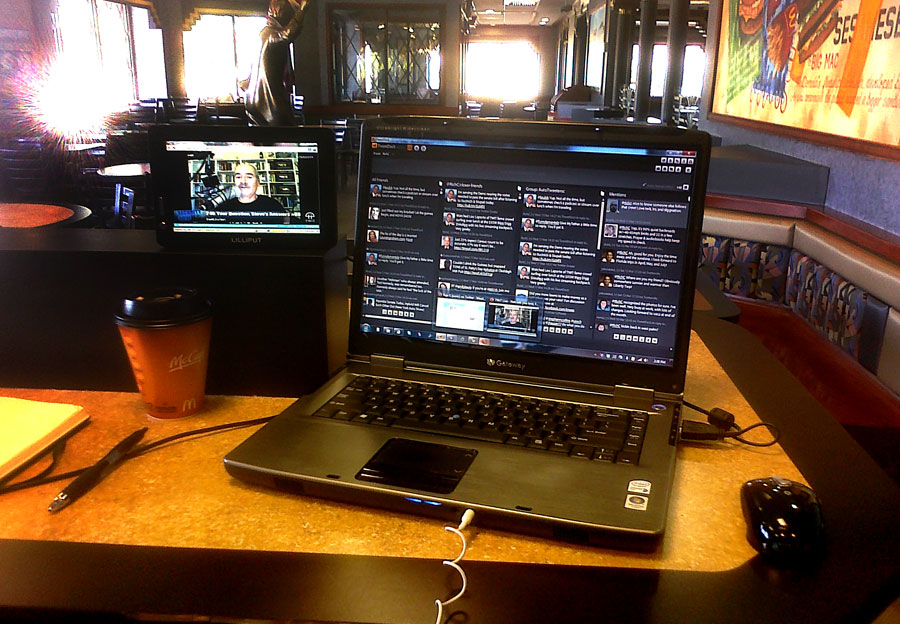
The well worn Gateway notebook computer is finally fixed

Posted By on January 4, 2010

Success … finally! I been all thumbs in an ongoing struggle (post one and two) to notebookworksagainfix my notebook computer during the Christmas and the New Year holiday.  I ordered the suspect part, ‘an inverter,’ for my Gateway notebook computer and after hassles with pre-Christmas shipping, finally received it only to find out it was incorrect (not my fault). I order once again from another ebay seller and saved $10 – only $7.99 (including shipping — cheap). It was the correct component and finally I’m back to nearly 100% at this blog posting (still need to reassemble the notebook … not necessarily an easy task).

Unfortunately, while waiting for the inverter, I also disassembled the LCD screen with the precision of a chainsaw wielding drunken lumberjack thinking I would test the backlight – not too bright of me. My display of barbarism on my computer and lack of patience required the purchase of a new display for and additional $85 as well. So, my initial $18 repair (first ‘wrong’ inverter) turned into about $100  in total … nevertheless, I’m glad to be mobile once again. (in hindsight, I could have fixed my computer for a total of $7.99 including shipping! Kudos to ebay seller techmechanic)

What I did learn from the project might be poignant to someone reading this: Don’t bother to try and replace the backlight tube in your laptop’s display (photo below), it is extremely tedious … and in my opinion not well designed for replacement. Instead, opt for a replacement screen.

lcdbacklight

Spending the day with Mom and Dad

Posted By on January 3, 2010

Mom and Dad
Mom and Dad 01/02/10 — Palm Pre

We’ve had a couple of nice family gatherings over Christmas and New Years this holiday season, so why not include two of the most important peopleBirdfeeder in my life … Mom and Dad. It was a great to be together with them and enjoying time reminiscing — I think even my kids enjoyed some of the old photos of their dad … especially the embarrassing ones. My dad who is retired seems to enjoy feeding and recording the birds that visit their feeder and mom more than ever enjoys her time working at the local “Once Around Shop” as a volunteer. I’m particularly proud of her for her 25 (now almost 26 years) of service there … something communities need more of.

Birdfeeder at mom and dad's 3

I’m also thankfully they are in great health and spirit … and a great example of husband/wife and father/mother our family. I love you mom and dad.

Birdfeeder at mom and dad's

A full day of college football bowl games today

Posted By on January 2, 2010

Penn State game

Like many men (and women) in America, I spent New Year’s day 2010 watching way too much college football. It was really the first test of our updated HDTV home theater – totally pleased (photo).For the most part we enjoyed the games, particularly the Ohio State Buckeyes Rose Bowl victory. That said, we’re finishing the day watching ‘our’ Cincinnati Bearcats struggle against the Florida Gators in the Sugar Bowl … and it is making me ill. We are obviously overmatch and/or have underplayed (currently 51 – 24 with 3 minutes left). Perhaps Coach Brian Kelly would have made a difference if he were still here, but I doubt it. My congratulations to the Gators and their impressive quaterback Tim Tebow … both on and off the field. I look forward to seeing what the future holds for him. Defeat is imminent.
🙁

Posted via email from richc’s posterous

Handling small parts – a “How to” suggestion

Posted By on January 1, 2010

smallscrewssiliconetip

There come a time when having even small fingers and thumbs isn’t good enough, let alone bigger finger like me, isn’t to repair. Here’s a time tested technique that might just keep your frustration level down. When you’re tinkering with small parts like electronic devices screws, try a dot of silicone sealant on the end of your screwdriver. Often it is just enough to hold the tiny screw so that it can be put delicately back in the correct spot. I keep a small tube in my toolbox just for that purpose; the screw top on the tube is just the right size for most small screwdrivers so I don’t even have to squeeze any out.

__

Beware of your dependence on technology next year

Posted By on December 31, 2009

A strange GPS story and follow-up courteous of the Air Forces Space Command Twitter account to usher out 2009 and welcome 2010 … Happy New Year, by the way. 

GPS strands couple in snow for 3 days

afspace_tweet091229GRANTS PASS, Ore. – A Nevada couple letting their SUV’s navigation system guide them through the high desert of Eastern Oregon got stuck in snow for three days when the GPS unit sent them down a remote forest road.

On Sunday, atmospheric conditions apparently changed enough for their GPS-enabled cell phone to get a weak signal and relay coordinates to a dispatcher, Klamath County Sheriff Tim Evinger said.

"GPS almost did ’em in and GPS saved ’em," Evinger said. "It will give you options to pick the shortest route. You certainly get the shortest route. But it may not be a safe route."

Evinger said the couple got stranded Christmas Day and a Lake County deputy found them in the Winema-Fremont National Forest outside the small town of Silver Lake on Sunday afternoon and pulled their four-wheel-drive Toyota Sequoia out of the snow with a winch.

John Rhoads, 65, and his wife, Starry Bush-Rhoads, 67, made it home safely to Reno, Nev.

"It will be (a Christmas) we remember the rest of our lives," Starry Bush-Rhoads said in a telephone interview from her home. "They said if they didn’t find us ’til this time next spring, we wouldn’t be happy."

The couple was well-equipped for winter travel, carrying food, water and warm clothes, the sheriff said.

"Their statement was, being prepared saved their life," he said.

The couple had been in Portland and followed their GPS as it directed them south on U.S. Highway 97 to Oregon Highway 31, which goes through Silver Lake and Lakeview before connecting with U.S. Highway 395 to Reno, Evinger said.

In the town of Silver Lake, the unit told them to turn right on Forest Service Road 28, and they followed that and some spur roads nearly 35 miles before getting stuck in about 1 1/2 feet of snow near Thompson Reservoir, the sheriff said.

"For some reason, they finally got a weak signal after 2 1/2 days," Evinger said. "They called in. They alternated between two different cell phone numbers."

A GPS-enabled phone is able to send its coordinates to 911, and eventually one of the couple’s phones sent its location to the dispatcher’s console, the sheriff said.

Spotted a Cruising World issue on season 3 NCIS episode

Posted By on December 31, 2009

I’ve mentioned my favorite sailing magazine (Cruising World) before on my blog, but a fraction of a second appearance of a December 2003 issue in one of my favorite CBS television programs, NCIS, made my night.

CWinNCIS_Untouchable_S3  CW_Dec2003cover

We’ve been working our way through the television series when during the ‘Untouchable’ episode in Season 3 of NCIS, the above photo (left) appeared for a brief moment at the crime scene. As a long time Cruising World reader (circulation 135,000 – see PDF), the CW masthead flicking across the screen caught my eye … to my wife and daughter’s amusement. Of course I had to follow this up with finding the actual issue from my bookshelf … and blogging on it! Might also be worth sending out a tweet to @cruisingworld?
  🙂

Palm webOS 1.3.5 end of 2009 update

Posted By on December 30, 2009

Palm Pre update screen

Another phone to blog test this one with a photo from the Palm Pre ‘Update’ screen (via Posterous but edited):

Palm updated their webOS to version 1.3.5 during the last few days of 2009, and from my preliminary testing has improved the speed on my Pre. I’m hoping for battery improvement that has been promised, especially better ‘juice’ management when in areas of questionable cell coverage. One such area on my phone was on Christmas day visiting my parents; I glance at my nearly unused Palm Pre about 3PM and the phone had shut itself off.

As for an overall opinion, I do like the Pre but miss several of the features and applications that were available on the Treo/Centro models. Improvements are coming as is my appreciation for several features not available on other devices:

  • – multiple apps
  • – good quality camera
  • – wifi AND wifi tethering
  • – physical keyboard
  • – synegy with Google contacts & calendar
  • – multiple email account merging
  • – SMS threading (Blackberry users will understand this)
  • – ease of updating and online backup of data
  • – form factor, size, display quality and audio apps (Stitcher, Pandora, Accuradio, MP3, etc – soon Flash video support)

All in all the improvements seem slow, but are coming. I enjoy and look forward to each — keep them coming.

— Sent from my Palm Pre

Guide to Speeding Up Your Windows PC’s Startup – Lifehacker

Posted By on December 29, 2009

Reposting something that might be helpful for those looking to gain a bit of speed back from their aging Windows based computer. The aging problem seems to happen to computers just as it does to people.

You just hit the power button your PC, and now you’ve got enough time to brew a fresh pot of coffee for the entire office—because that’s how long it takes for your computer to go from “on” to “ready to work.” If your PC’s bogged down by a bunch of programs that automatically start up when it does, it can take forever to get started every morning. Without a major hardware upgrade, there’s not much you can do to cut the time it takes for Windows to actually boot—but you can trim and tweak the amount of time it takes for your desktop to get to a working state. Let’s take a look at a few ways you can cut your Windows’ desktop’s loading times using built-in utilities and third-party tools. When you install a new piece of software on your computer these days, more often than not it will set a little bit of itself to start up automatically when your PC does, either to check for updates, make it seem faster, or just remind you that it’s there at all with a little icon in your system tray. Problem is, when you install lots of software but don’t use it all, these little startup entries can suck away CPU cycles, memory, and time. Reclaim them by removing the ones you don’t need.

Remove Startup Items Without Downloading a Thing

While many programs promise to clean up your startup for you, you can make quite a few adjustments in Windows itself, without using any kind of extra tools. The best, safest, and most basic place to start is in your Windows Start menu’s Startup program group. Navigate to it and see what programs appear there. Right-click on any one and choose Delete if you don’t need it starting up on its own.
Once you’ve done that, it’s time to bring out the big guns. Windows can also start up items planted in your registry automatically. To see what those are, from the Windows Start menu, choose Run…, and type msconfig then hit Enter to start the Windows System Configuration Utility. Switch to the Startup tab to see a more comprehensive list of what’s starting up automatically. Here’s what it looks like. Now, this list can seem opaque and confusing. What is ctfmon or RTHDCPL? The command column, which sometimes lists a full path to the item’s location, can sometimes give you a clue as to what the heck an item actually is. As always, Google is also your friend in these situations. From here you can uncheck items to stop them from starting up. Don’t uncheck stuff just because you don’t know what it is; uncheck stuff you know you don’t need. For instance, if you’re not a big iTunes or Quicktime user but you’ve got the installed for occasional use, uncheck QTTask and iTunesHelper.Once you’ve unchecked items in this utility, when you restart your computer, Windows will prompt you, saying that it’s using “selective startup.” That’s ok—you can always renable items by typing the msconfig command in the Run box again.
Messing with msconfig takes somewhat of a brave and savvy Windows user, but a few third-party Windows tweaking and cleaning tools offer startup managers that are more user-friendly.

Download and Run a Startup Cleaner Utility

There are literally a gazillion Windows tweaking utilities that include startup management capabilities, but lets take a look at two good ones. CCleaner (which stands for “Crap Cleaner”, see our original review) can scan your system for all sorts of extras and get rid of them, but you’re interested in the Startup manager. Hit the Tools button, then the Startup button to get there. Here’s what your list will look like. As you can see, it offers a little more information than msconfig above (in the Program and File column), and that may help you decipher what’s program is what. You can disable and delete items from your Startup using those respective buttons. If you don’t want to install more software in order to clean up your system (which makes sense), System Explorer (see our original review) offers a portable version, and its startup manager is beefy, with hooks into the registry, an online virus checker, and even Google searches for file names. In the System tab, hit the Startup tab to take a look at what’s auto-starting on your PC. Here’s what it looks like. As you can see, using the right-click context menu you can go straight to the registry editor, or do a search on ProcessLibrary.com or Google for the item. Also, the program’s publisher and file path are included, which offer more information about what’s what and what you can afford to disable. Besides CCleaner and SystemExplorer, Lifehacker readers also like MZ Ultimate Tweaker and RegToy.

Delay Item Start to Get to Work Faster

Of course, it’s not that one program that’s starting up automatically and slowing down your whole PC—it’s all of them in aggregate. You may audit your startup list and realize that yes, you do want all these programs to start. But maybe you don’t need them to start up at the exact moment you’re dying to get into Outlook and read your email, or work on that urgent report. The Startup Delayer utility (our review) does just that—it delays items from starting up from anywhere from 20 seconds to several minutes to hours so you can start working sooner. For instance, if your printer driver pre-loads but you’re not printing the moment you log on, you can delay it for a minute or two. Similarly, I really don’t need the Java Updater process starting its work before I do, so it is a good candidate for delaying. Here’s what Startup Delayer looks like.

Don’t Fall for the Myths

There are a lot of myths and misconceptions and misguided “secrets” to speeding up your PC published out there. Don’t fall for them. If you delve deep enough into Windows optimization tips online you’ll find tips about deleting page files, cleaning out your registry, setting your PC to use multiple cores manually, and lots of other authoritative-sounding tweaks. Before you do any of that, check out the How-To Geek’s awesome guide to debunking Windows performance-tweaking myths. Have you had any startup editing revelations? What’s your favorite PC startup speed-up utility?

Posted via web from richc’s posterous

Interesting notebook computer observation – via Posterous

Posted By on December 28, 2009

external with notebook

As mentioned earlier, my primary Gateway NX570XL notebook computer is having LCD screen related problems. I ordered a new inverter board prior to Christmas that would have been the least expensive repair, but the item that was shipped was incorrect — much larger (longer) than the one on my computer (photo below).

One of the interesting finding is that of computer speed. When running the computer with  both the  ‘super’ dim LCD and external monitor all speeds were as usual. When I disassembled the notebook, removing the LCD panel and unplugging, the attached external monitor’s resolution began natively higher (now1280x1024) AND the computer now runs significantly faster than it did previously. The external is a Samsung 170s (older) but the quality is very good with the added benefit of more pixels and more speed. Besides the loss of portability, it is nice having increased response and speeds.

I’ve ordered an entirely new replacement LCD screen in hopes that I can repair it … and for those who have successfully replaced the backlight tube, I take my hat is off to you — it’s no easy task.

old new inverter

Posted via email from richc’s posterous

Reusing the Keurig one cup K cups for making coffee

Posted By on December 28, 2009

Reusable KcupThanks to my wife Brenda, who gave me a Keurig one-cup coffee maker for Christmas, I’ve been enjoying fresh coffee every day since Friday. In my opinion, the new Keurig brews coffee as good or better than most coffee shops. The engineering beauty of these design is that the hot water and steam stays in the small prepackaged “k-cups” of coffee, brewing the fresh sealed grounds at the correct temperature and time producing a near perfect cup of coffee. These “k-cups” can be purchased from a variety of coffee brewers, including one of my favorites, Caribou coffee — but they don’t come cheap. For those of us that drink multiple cups of coffee each day, this is method is not the most cost effective way to make coffee.

The options to expensive pre-packed k-cups  as I see it are:

  1. Purchase a removable, washable and reloadable cup that fits the “k-cup” slot (photo above). Keurig CoffeemakerThis works pretty well, but I noticed some overflow due to either my use of too many grounds or the lack of a seal on the top? Still, I have it working fairly well if I only want to make a smallish cups of coffee (the Keurig model I have makes two sizes — small and medium). As for sizes, I do wish there was a large mug option … although running two smalls through one k-cup does work, but unfortunately produces a relatively weak cup of Joe.
  2. Purchase replacement plastic lids (see My-Kap)  for a used k-cup that has been cleaned out. This may be a decent option, but does require peeling or cutting off the foil and buying a box of plastic snap on lids.
  3. Use a small square of GLAD Press’n Seal® wrap to reuse a washed out k-cup. So far this works well although isn’t the most convenient. What I do like about this technique is that it’s “cheap,” and allows me to use my 1/2 decaf, 1/2 caffeinated blend of Sumatra coffee that Caribou grinds for me.

glad press n seal

Click slide show below displaying a series of photos of how I used the GLAD Press’n Seal® wrap to reuse Keurig K-cups.

Desultory - des-uhl-tawr-ee, -tohr-ee

  1. lacking in consistency, constancy, or visible order, disconnected; fitful: desultory conversation.
  2. digressing from or unconnected with the main subject; random: a desultory remark.
My Desultory Blog